![Allocator_Logo_Colour_Mark.png]](https://www.allocator.com/hs-fs/hubfs/Branding%20-%20Images%20and%20Logos/Allocator%20logos/Allocator_Logo_Colour_Mark.png?height=40&name=Allocator_Logo_Colour_Mark.png)
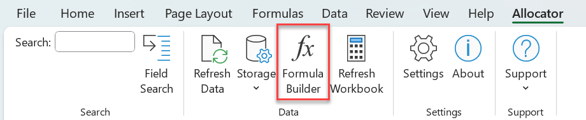
The easiest way to build formula is within the formula builder.
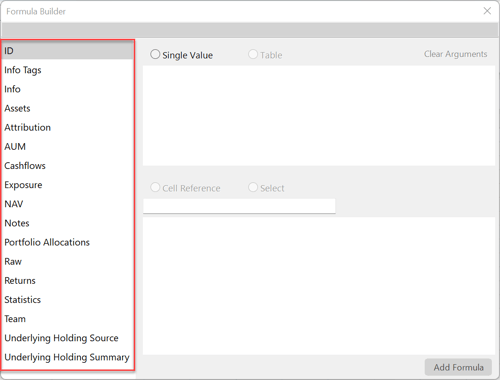
Within the Formula Builder, choose the data set you wish to access from the left panel.
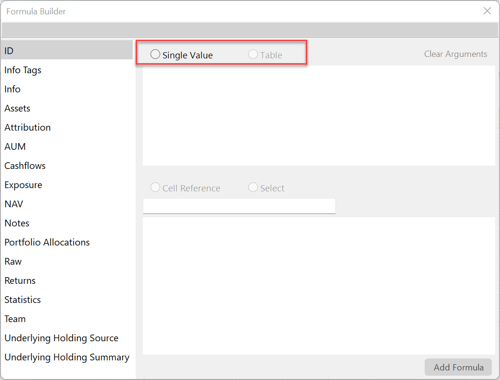
Then choose how you would like this data to be displayed. Single Value will return one data point in a single cell, Table will return a table of data.
Once you selected your output type, you will see a list of parameters relevant to that data type and output. A full list of each formula type is available here.
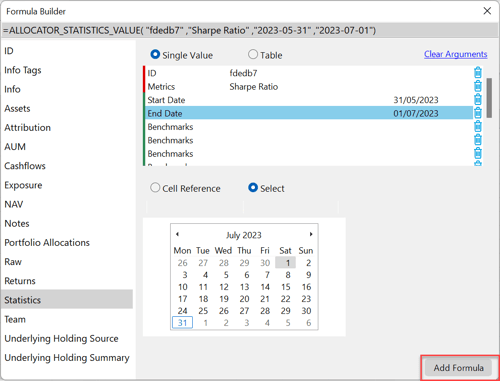
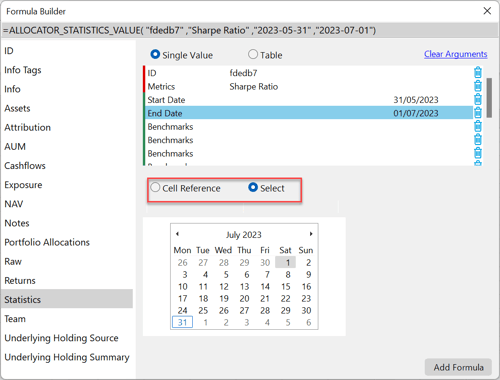
Select the ID of the asset you want to access data for, then select further parameters such as Date and Metric. You can choose the parameters within Formula Builder, or by referencing a cell within your worksheet.
 An argument with red next to it is required. In the Formula Builder you can insert a formula only once all its Required arguments have been filled.
 An argument with yellow next to it is complex because its status changes according to other arguments, so that it can be Optional, Required or Ignored.
 An argument with Green next to it is optional, so you can insert the formula without filling this argument.
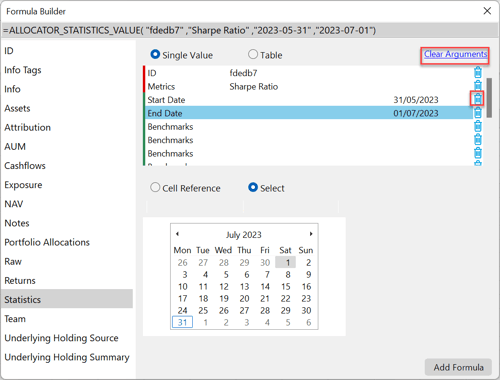
You can select the trash icon to remove a single argument, or click 'Clear Arguments' to reset all parameters.
Once you have entered all required arguments, you can select 'Add Formula' to insert the data into your worksheet.